Kimi Code Integration
Install Kimi Code CLI on macOS, Linux, or Windows, then point it at GPT-5, Claude, Kimi K3, or 200+ models through OffRail. Provider setup in six steps.
Kimi Code CLI is an open-source, AI-powered coding agent developed by Moonshot AI designed to automate software development tasks directly within your terminal. It can read and edit code, execute shell commands, search files, and autonomously manage complex coding workflows.
Kimi Code features first-class support for the models.dev registry, a community-maintained model catalog. This allows Kimi Code to query and configure OffRail dynamically — fetching all compatible models, capabilities (such as thinking or vision), and pricing without requiring manual TOML editing.
Prerequisites
- An OffRail API key — sign up free (no credit card required)
Setup
Install Kimi Code CLI
If you haven't already, install Kimi Code CLI.
-
macOS or Linux:
curl -fsSL https://code.kimi.com/kimi-code/install.sh | bash -
Homebrew (macOS/Linux):
brew install kimi-code -
Windows (PowerShell):
irm https://code.kimi.com/kimi-code/install.ps1 | iex
Confirm the installation:
kimi --versionLaunch Kimi Code and Open the Provider Manager
Start the interactive terminal in your project directory:
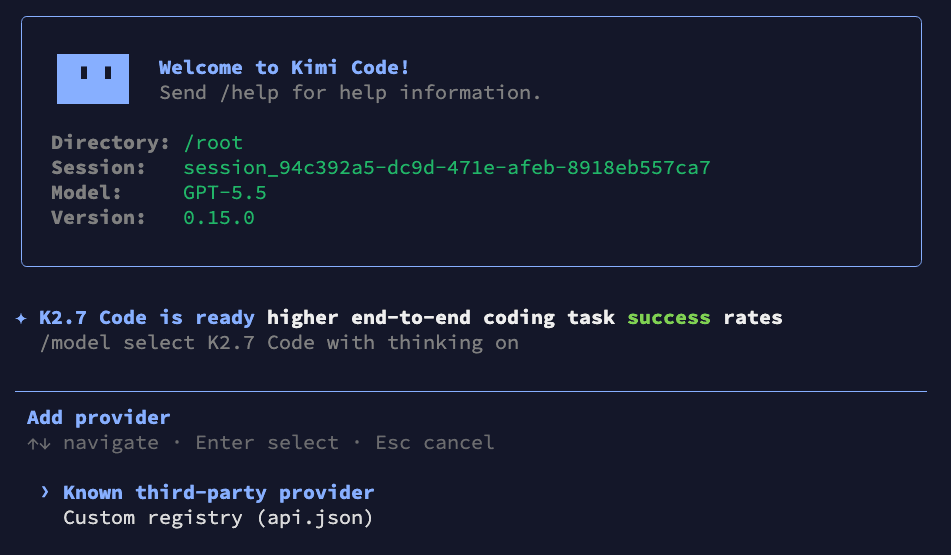
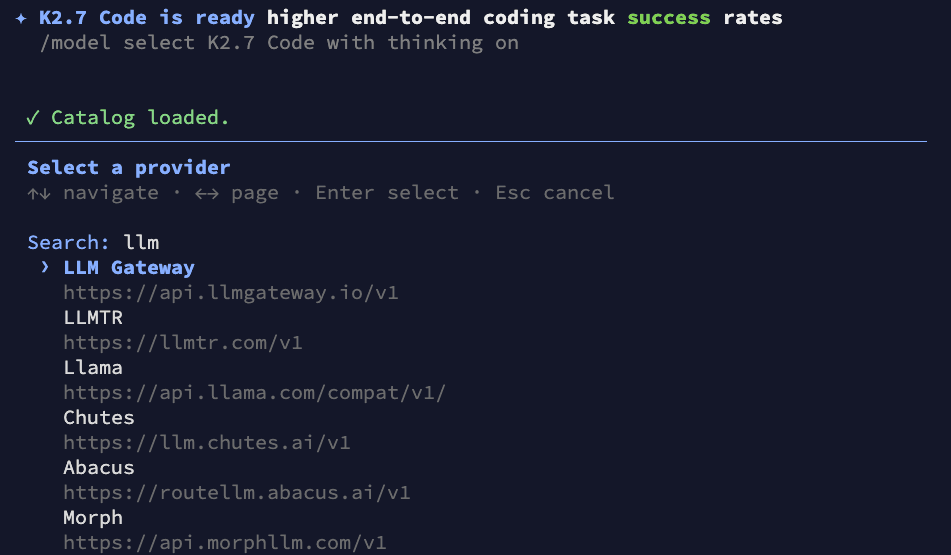
kimiOnce loaded, type the /provider command and press Enter. Select Known third-party provider to fetch the catalog from the registry:
Enter Your API Key
When prompted, paste your OffRail API key and press Enter. Kimi Code will save it securely to your local configuration:
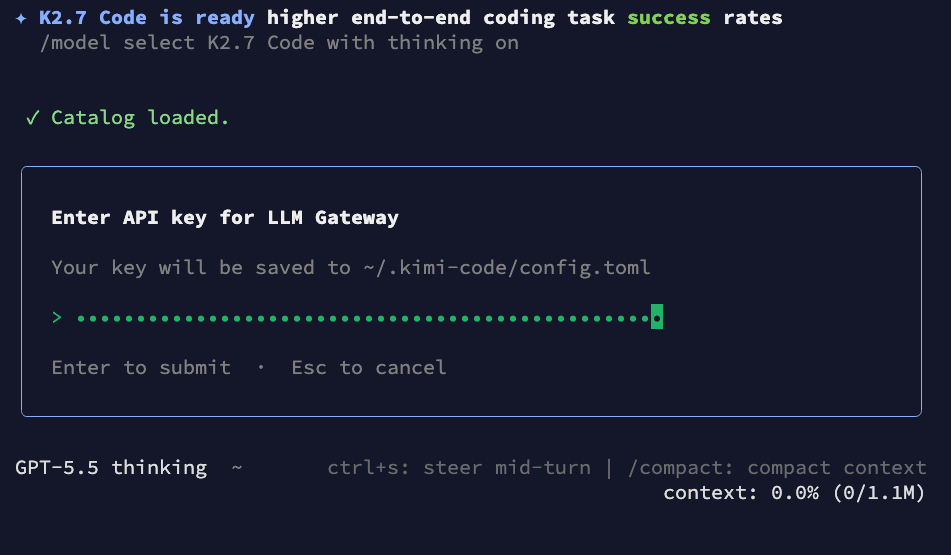
Your credentials are saved locally to ~/.kimi-code/config.toml.
Select a Model and Toggle Thinking
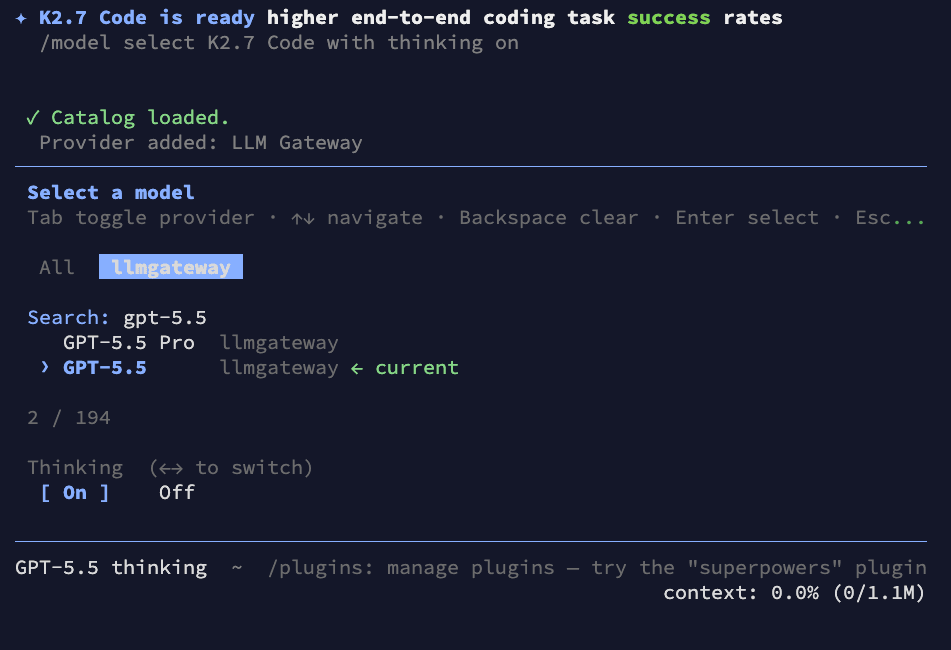
The OffRail catalog is now loaded. Use the arrow keys to browse or type to search for your desired model. Select the offrail tab to view only OffRail models.
You can also toggle the Thinking option (On/Off) at the bottom depending on the model's capabilities:
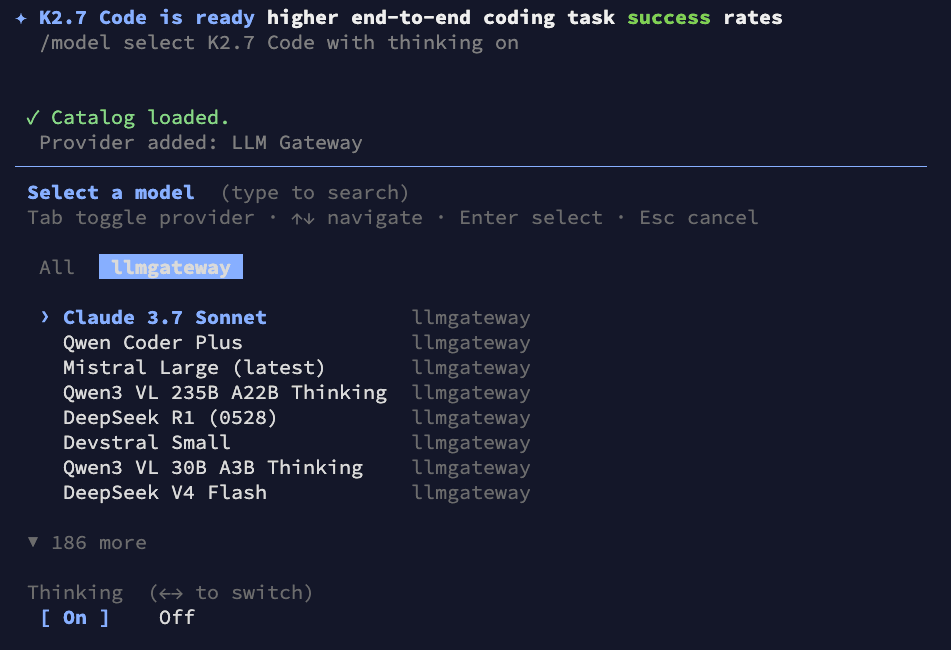
For example, type gpt-5.5 to find the latest reasoning model, select it, and press Enter:
Start Coding
All set! Kimi Code is now configured. Your requests will be securely routed through OffRail, allowing you to use advanced models for local autonomous coding while showing real-time usage and cost statistics on your OffRail dashboard.
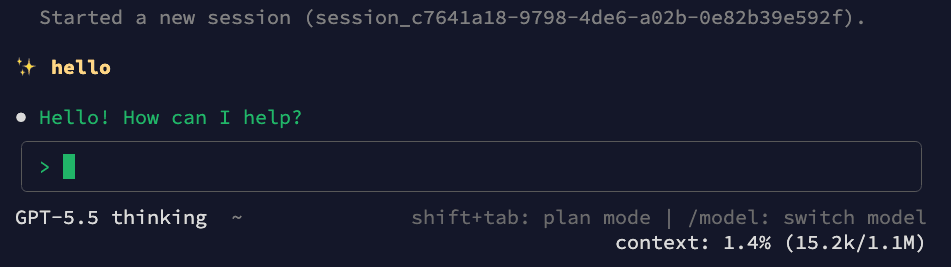
Use /model in the terminal session at any time to switch models.
Manual Configuration (Advanced)
If you prefer to configure your environment manually without using the interactive provider manager, you can write settings directly to your configuration file at ~/.kimi-code/config.toml (or C:\Users\<YourUsername>\.kimi-code\config.toml on Windows).
Here is an example TOML configuration that registers GPT-5.5, Claude 3.7 Sonnet, DeepSeek R1, and Qwen3.7 Max manually:
default_model = "offrail/gpt-5.5"

[providers.offrail]
type = "openai"
api_key = "orl_your_api_key_here"
base_url = "https://api.offrail.ai/v1"

[models."offrail/gpt-5.5"]
provider = "offrail"
model = "gpt-5.5"
max_context_size = 1050000
max_output_size = 128000
capabilities = [ "thinking", "tool_use" ]
display_name = "GPT-5.5"

[models."offrail/claude-3.7-sonnet"]
provider = "offrail"
model = "claude-3.7-sonnet"
max_context_size = 200000
max_output_size = 8192
capabilities = [ "image_in", "thinking", "tool_use" ]
display_name = "Claude 3.7 Sonnet"

[models."offrail/deepseek-r1"]
provider = "offrail"
model = "deepseek-r1"
max_context_size = 131072
max_output_size = 8192
capabilities = [ "thinking", "tool_use" ]
display_name = "DeepSeek R1"

[models."offrail/qwen3.7-max"]
provider = "offrail"
model = "qwen3.7-max"
max_context_size = 1000000
max_output_size = 65536
capabilities = [ "thinking", "tool_use" ]
display_name = "Qwen3.7 Max"
Why Use OffRail with Kimi Code CLI
- 200+ models — Access GPT-5.5, Gemini, Llama, DeepSeek, and more in a single CLI configuration.
- Unified cost tracking — Get a detailed breakdown of costs per prompt and session in your dashboard.
- Response caching — Automatically cache repeated requests (such as parsing or building commands) to save API costs.
- Automatic fallback — Keep coding even if a provider encounters temporary downtime.
- Volume discounts — Access selected models with up to 90% savings compared to standard pricing.
View all available models on the models page.
Need help? Join our Discord community for support and troubleshooting assistance.
How is this guide?