Guardrails
Configure content safety rules to protect your LLM usage
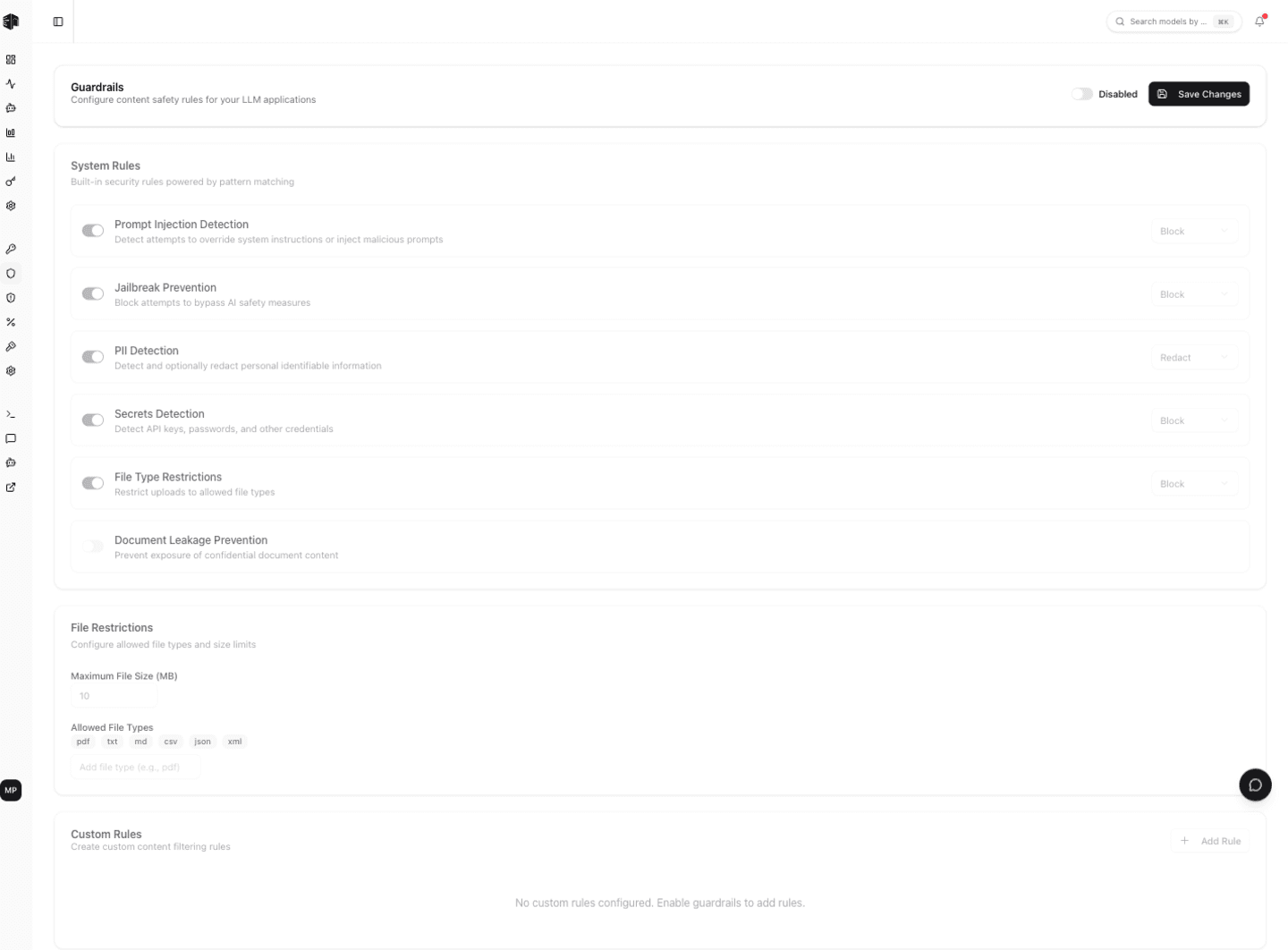
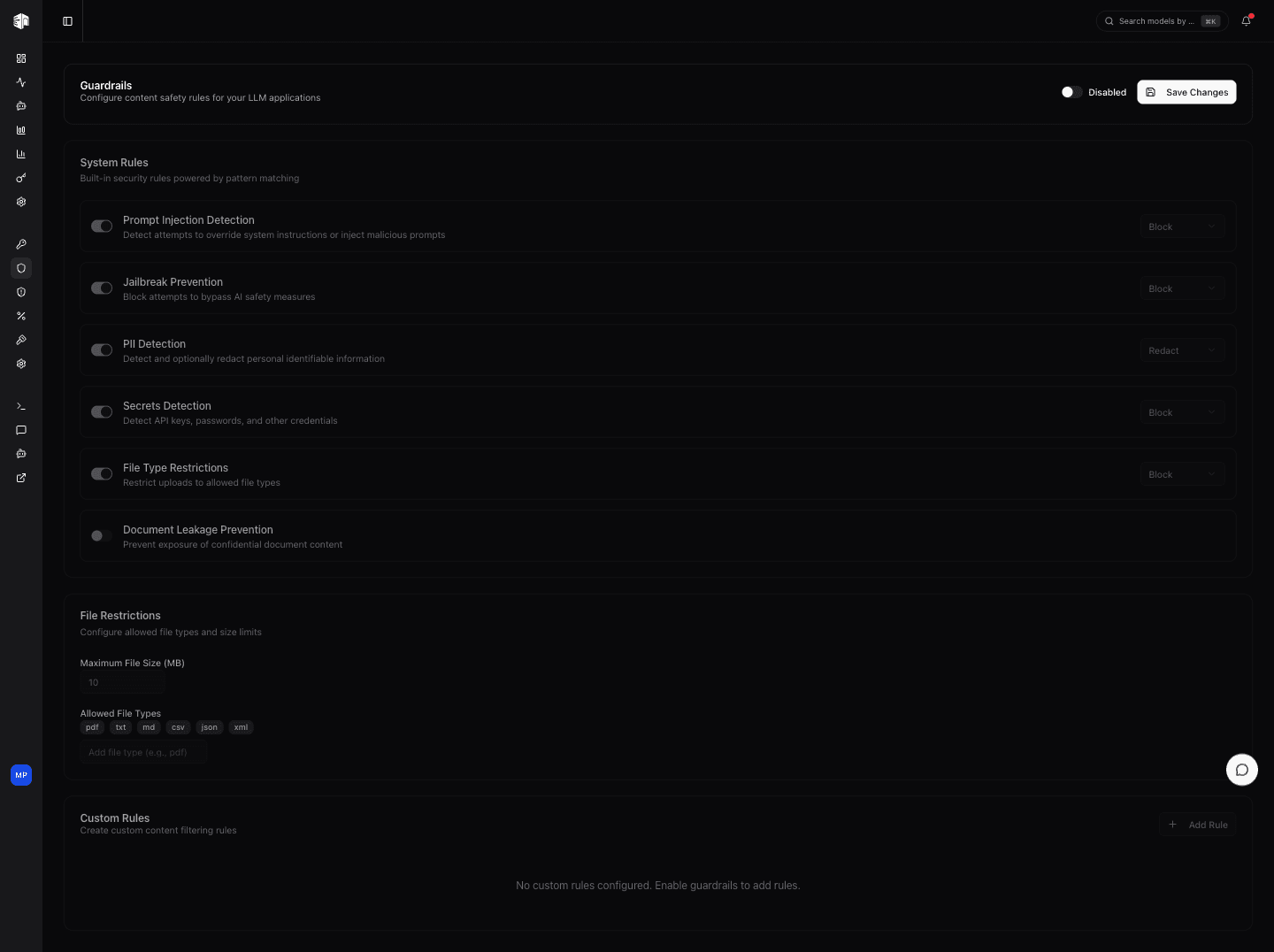
The Guardrails page lets you configure content safety rules that automatically scan and filter API requests before they reach the LLM provider.
Guardrails are available on the Enterprise plan. Owner or Admin role is required.
Main Toggle
A global toggle at the top enables or disables all guardrails for your organization. Click Save Changes to apply.
Organization vs. Project
The same page exists in each project's settings. By default a project uses the organization guardrails, and the project page shows them read-only alongside a banner naming the project — for example "Enterprise Project uses the organization guardrails".
Turn off Use organization guardrails on the project page to give that project its own configuration and custom rules, which then replace the organization's for that project's traffic. The project starts from a copy of the organization's current settings, so opting out does not drop the rules that were already in force — edit down from there and click Save Changes.
The organization page names any projects that override it ("The settings below apply to every project except …"), so it is always clear where these settings do and do not apply.
System Rules
Six built-in rules with individual enable/disable toggles:
| Rule | Description |
|---|---|
| Prompt Injection Detection | Detects attempts to override or manipulate system instructions |
| Jailbreak Prevention | Identifies attempts to bypass safety measures |
| PII Detection | Identifies personal information like emails, phone numbers, and SSNs |
| Secrets Detection | Detects API keys, passwords, and credentials |
| File Type Restrictions | Controls which file types can be uploaded |
| Document Leakage Prevention | Detects attempts to extract confidential documents |
Each rule has an action dropdown to configure the response:
- Block — Reject the request entirely
- Redact — Remove or mask sensitive content, then continue
- Warn — Log the violation but allow the request
File Restrictions
Configure file upload limits:
- Max file size — Set the maximum file size in MB
- Allowed file types — Add or remove permitted MIME types
Custom Rules
Create organization-specific rules by clicking Add Rule:
- Blocked Terms — Block specific words or phrases
- Custom Regex — Match patterns with regular expressions
- Topic Restriction — Restrict content related to specific topics
Each custom rule can be individually enabled/disabled or deleted.
Learn more about guardrails in the Guardrails feature docs.
How is this guide?